
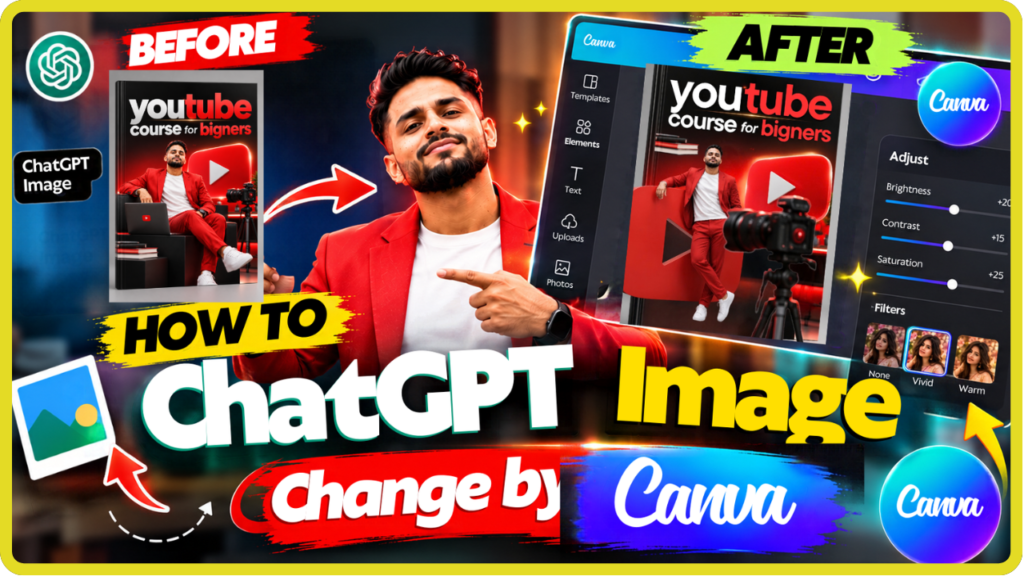
Want to change or edit a ChatGPT-generated image in Canva? In this complete beginner-friendly guide, you will learn how to import a ChatGPT image into Canva, edit the background, add text, resize the design, improve the visual quality, and turn an AI-generated image into a professional social media or marketing creative.
AI image generation has made content creation much easier. However, generating an image is only the first step. For YouTube thumbnails, Instagram posts, Facebook ads, course banners, blog graphics, and business promotions, you often need to customize the image according to your brand.
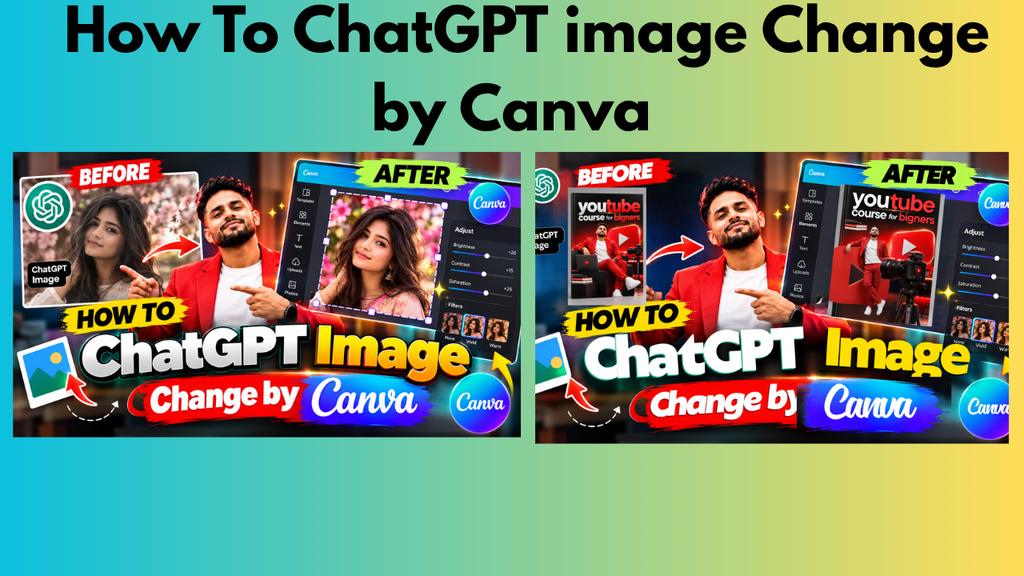
How to Change ChatGPT Images with Canva
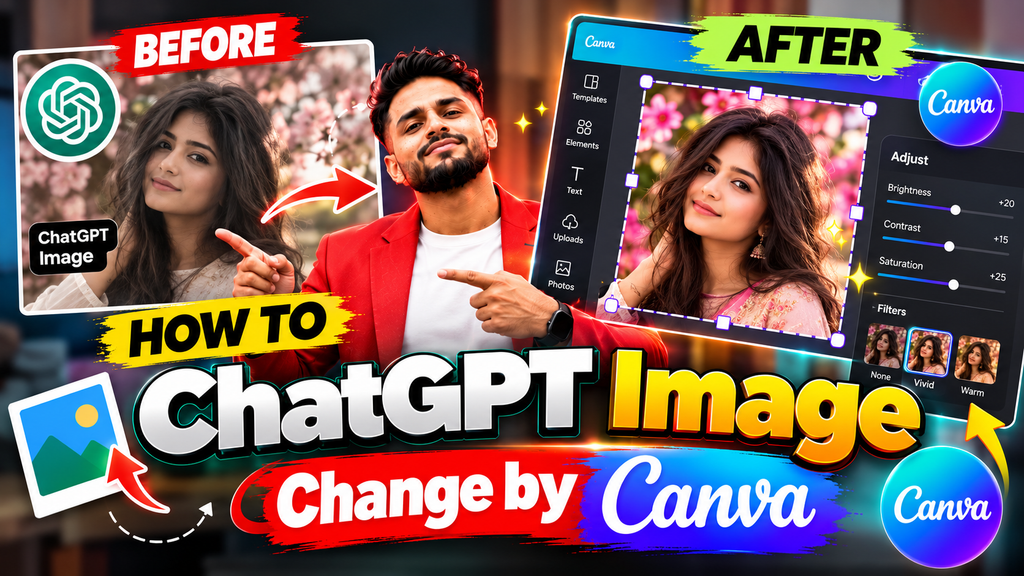
What Is ChatGPT Image Editing with Canva?
ChatGPT can help you create or modify visual content, while Canva provides a simple design environment where you can arrange, customize, and brand your creative.
For example, you can take an AI-generated image and use Canva to:
- Change the overall design
- Add or remove design elements
- Add headlines and subtitles
- Change fonts
- Add your logo
- Change colors
- Remove or replace backgrounds
- Resize the design
- Create YouTube thumbnails
- Create Instagram posts
- Create Facebook creatives
- Create promotional banners
The combination can be particularly useful for beginners who don’t have advanced graphic-design skills.
How to Change ChatGPT Images with Canva
How to Change ChatGPT Images with Canva
Let’s understand the complete process step by step.
Step 1: Create or Select Your ChatGPT Image
How to Change ChatGPT Images with Canva
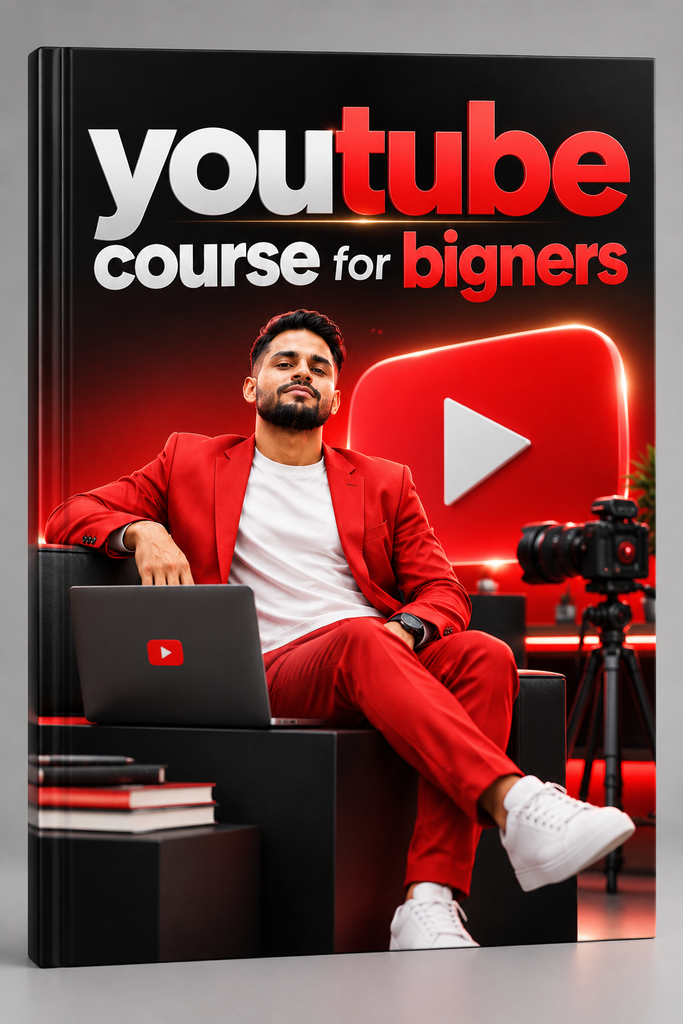
First, create your desired image using ChatGPT or select an existing AI-generated image.
Before creating the image, clearly describe what you want.
For example:
Prompt:
Create a professional YouTube thumbnail about AI image editing. Use a modern technology style, strong visual contrast, one main subject, and enough empty space for a headline.
The more specific your prompt is, the easier it becomes to get a useful starting image.
Pro Tip
Don’t try to make the final design perfect inside the AI tool.
Think of the AI-generated image as your creative base. You can perform the final layout and branding inside Canva.
Step 2: Download the ChatGPT Image
Once you have your image, save it to your computer.
Use a high-quality version whenever possible because you may later resize it for different platforms.
For example:
- YouTube Thumbnail — 1280 × 720 px
- Instagram Post — 1080 × 1080 px
- Instagram Portrait — 1080 × 1350 px
- Facebook Post — commonly 1080 × 1080 px
Always check the current platform specifications before publishing because recommended dimensions can change.
Image: Downloading the AI-generated image before importing it into Canva.
Step 3: Open Canva
How to Change ChatGPT Images with Canva
Now open Canva and create a new design.
Search for the design format you need.
For example, if you are creating a YouTube thumbnail, search:
YouTube Thumbnail
Canva will automatically provide an appropriate canvas size.
You can also create a custom-size design when required.
Step 4: Upload Your ChatGPT Image to Canva
Inside Canva:
- Open your design.
- Go to Uploads.
- Select Upload files.
- Choose your ChatGPT-generated image.
- Wait for the upload to complete.
- Drag the image onto your Canva canvas.
- How to Change ChatGPT Images with Canva
Your ChatGPT image is now available inside Canva for further editing.
Step 5: Change the Image Background
One of the most useful Canva editing options is background editing.
Depending on the Canva features available in your account, you may be able to remove or modify the background using Canva’s image editing tools.
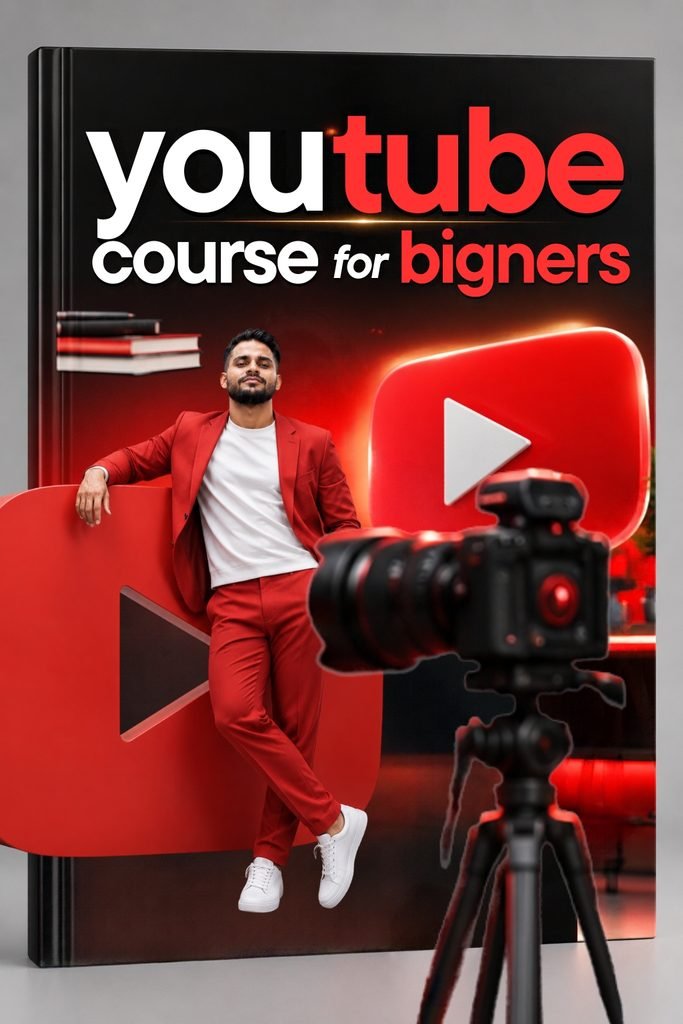
A background change can completely change the purpose of an AI-generated image.
For example:
Original:
AI-generated person + simple background
After Canva editing:
Person + professional technology background + branding + headline
This can turn a basic AI image into a marketing creative.
Important
Always check the final image carefully after background removal. AI-based editing can sometimes create unwanted edges or distort small details.
Step 6: Add Text to Your ChatGPT Image
Now you can add your main headline.
For a YouTube thumbnail, keep the text short and easy to read.
Instead of:
“Complete Step-by-Step Tutorial Showing You How You Can Easily Change Your ChatGPT Generated Images Using Canva”
Use:
CHANGE CHATGPT IMAGE
or
CHATGPT + CANVA
Your text should remain readable even when the thumbnail appears small.
Thumbnail Text Formula
Use:
2–5 powerful words + strong visual
Examples:
- AI IMAGE EDIT
- CHATGPT → CANVA
- CHANGE AI IMAGE
- EDIT WITH CANVA
- AI IMAGE HACK
Step 7: Add Your Branding
If you are creating content for your business, add your branding elements.
You can add:
- Logo
- Brand name
- Website
- Brand colors
- Social media handle
- CTA
For example, a Mathura Digital Udaan creative could include the brand name in a small but visible position.
Avoid adding too many elements. A professional design needs visual hierarchy.
Step 8: Improve Typography
Typography can make a major difference in the quality of your design.
Choose fonts that are:
- Easy to read
- Bold
- Consistent
- Suitable for your audience
- Appropriate for the platform
For thumbnails, bold fonts generally work better than thin decorative fonts.
Use different font sizes to establish hierarchy.
For example:
MAIN HEADLINE
Large
Supporting Text
Medium
Brand Name
Small
Step 9: Resize Your Design
One of the biggest advantages of Canva is that you can adapt a design for different platforms.
How to Change ChatGPT Images with Canva
The same ChatGPT image can potentially be used to create:
YouTube
YouTube thumbnail
Square post or portrait post
Social media post or advertisement
Business promotional creative
Website
Banner or blog image
However, don’t simply resize everything without checking the layout.
After resizing, review:
- Text position
- Image cropping
- Logo placement
- Margins
- Readability
- Visual balance
Step 10: Download Your Final Design
Once your design is complete, review it carefully.
Check:
- Spelling
- Text alignment
- Image quality
- Logo placement
- CTA
- Background
- Mobile readability
Then download the final design in the format appropriate for your use case.
For most digital graphics, PNG or JPG can be suitable depending on the requirement.
Why Use ChatGPT + Canva for Image Editing?
Using ChatGPT and Canva together can simplify the content creation process.
1. Faster Content Creation
AI can help you generate ideas and visual concepts quickly.
2. Beginner Friendly
Canva provides a visual drag-and-drop workflow.
3. Branding
You can add your brand colors, logo, fonts, and other visual elements.
4. Multiple Content Formats
One concept can be adapted for multiple social media platforms.
5. Marketing Applications
The workflow can be used for:
- YouTube
- Blogs
- Courses
- Webinars
- Ads
- WhatsApp marketing
- Business promotions
ChatGPT Image + Canva: Best Workflow
A simple workflow is:
Idea → ChatGPT → AI Image → Canva → Editing → Branding → Resize → Export → Publish
This workflow can help content creators reduce repetitive design work while maintaining control over the final creative.
Image: ChatGPT to Canva workflow for AI-powered content creation.
Common Mistakes to Avoid
1. Too Much Text
Don’t fill the entire image with text.
2. Poor Contrast
Your headline should stand out from the background.
3. Too Many Fonts
Try to maintain a consistent typography system.
4. Low-Quality Images
Use the highest-quality source image available.
5. No Visual Hierarchy
The viewer should immediately understand what the design is about.
6. Ignoring Mobile View
A design that looks good on a desktop may become difficult to read on a smartphone.
FAQs
Can I edit ChatGPT images in Canva?
Yes. You can upload an image generated with ChatGPT into Canva and use Canva’s available editing and design tools to customize it.
Can I change the background of a ChatGPT image in Canva?
Depending on the Canva features available to your account, you can use Canva’s background-removal and image-editing capabilities to modify the background.
Can I use ChatGPT images for YouTube thumbnails?
Yes, AI-generated images can be used as part of a YouTube thumbnail. You can then customize the image in Canva with text, branding, and other design elements.
Is Canva good for beginners?
Canva is designed around a visual drag-and-drop workflow, making it accessible to beginners as well as experienced creators.
Can I use the same ChatGPT image on Instagram and YouTube?
You can reuse the same visual concept, but it is better to adapt the composition and dimensions for each platform rather than simply uploading the exact same design everywhere.
Final Thoughts
ChatGPT + Canva can be a practical combination for AI-powered content creation.
ChatGPT can help you develop the visual concept and generate or modify imagery, while Canva gives you control over layout, typography, branding, resizing, and final presentation.
If you are a YouTuber, student, freelancer, digital marketer, small business owner, content creator, or beginner, learning this workflow can help you create professional-looking digital content without requiring advanced graphic-design skills.
The key is not simply to generate an AI image.
The real value comes from taking that image and turning it into a clear, branded and platform-specific piece of content.
Start with ChatGPT, move to Canva, customize the design, add your branding, optimize it for the platform, and publish.
AI creates possibilities. Good design turns those possibilities into content.
About Mathura Digital Udaan
Mathura Digital Udaan helps beginners, students, housewives, employees and small business owners learn AI, Digital Marketing, Content Creation, SEO, Branding and Online Business Growth through practical training.
For more AI and Digital Marketing tutorials, explore our latest content and learn how to build your own digital ecosystem.
SEO Keywords
Primary Keyword:
How to Change ChatGPT Images with Canva
Secondary Keywords:
ChatGPT image editing, Canva AI image editing, edit ChatGPT images in Canva, ChatGPT Canva tutorial, AI image editing, Canva tutorial for beginners, ChatGPT image Canva, AI image editing with Canva, how to edit AI images, ChatGPT image editing tutorial
Suggested Image Alt Text
How to change ChatGPT images with CanvaChatGPT image editing in CanvaUpload ChatGPT image to CanvaEdit AI generated image in CanvaCanva AI image editing tutorialChatGPT Canva workflow for beginnersCreate YouTube thumbnail with ChatGPT and Canva