
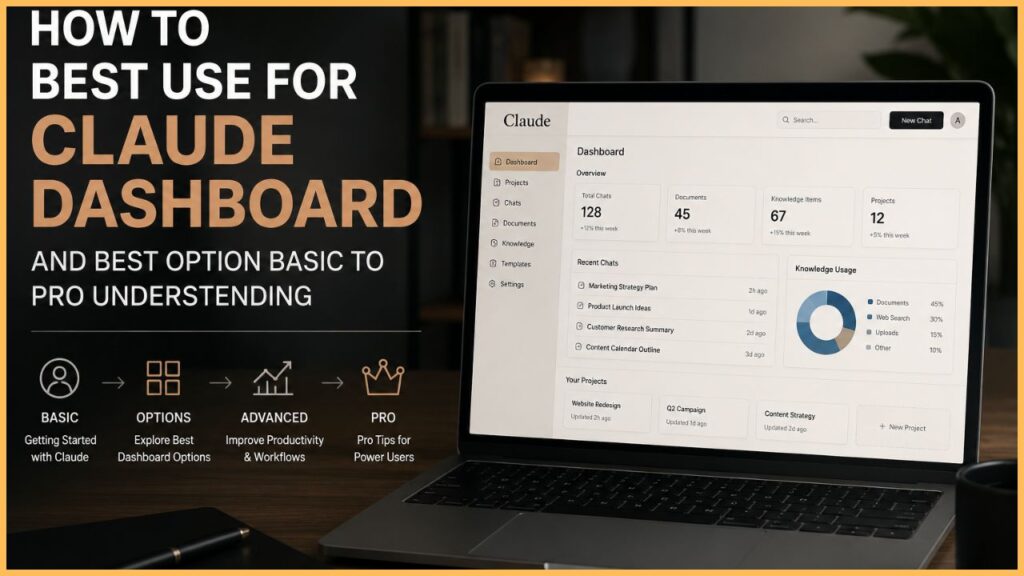
Learn how to use the Claude Dashboard professionally from beginner to advanced level. Discover the best Claude features, dashboard settings, workflow tips, AI prompting strategies, and productivity techniques for content creation, business, and automation.
How to Use Claude Dashboard Effectively: From Basic to Pro Level
Artificial Intelligence tools are changing the way people work, create content, manage businesses, and automate daily tasks. One of the fastest-growing AI platforms today is Claude AI by Anthropic. Many beginners start using Claude for simple writing tasks, but very few understand how to fully optimize the Claude Dashboard for professional-level productivity.
In this complete guide, you will learn:
- What Claude Dashboard is
- How beginners should use Claude
- Best settings and options inside Claude
- Advanced workflows for professionals
- Prompting techniques
- Productivity hacks
- Best use cases for creators, freelancers, students, and business owners
If you want to use Claude like a professional instead of just asking random questions, this guide will help you understand the complete system.
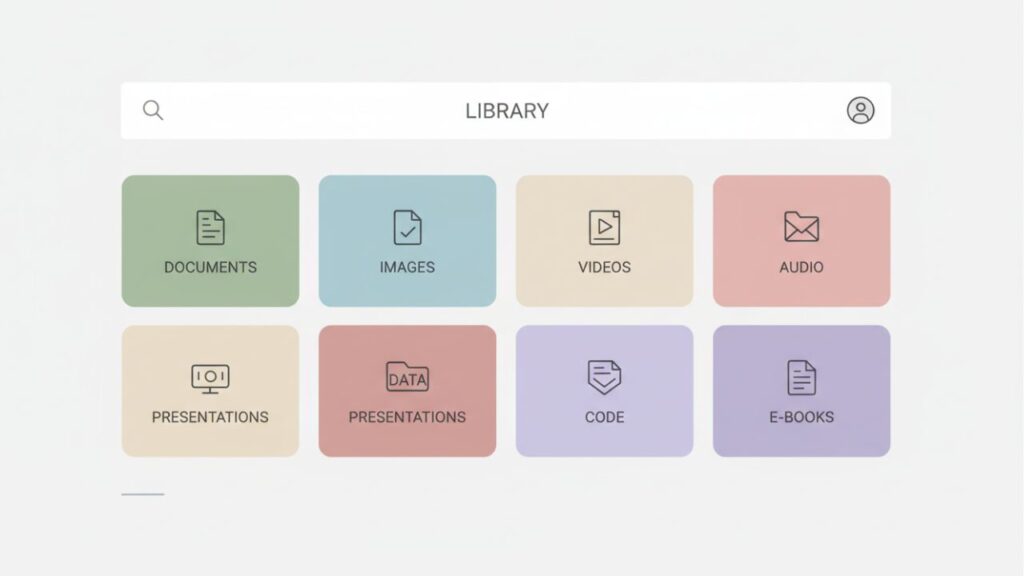
What is Claude Dashboard?
Claude Dashboard is the main workspace of Claude AI where users interact with the AI model for writing, brainstorming, coding, research, business planning, automation, and productivity tasks.
Unlike many traditional AI tools, Claude focuses heavily on:
- Long-form understanding
- Natural conversation
- Large context handling
- High-quality writing
- Business workflows
- Safer AI interactions
Claude is widely used by:
- Content creators
- Bloggers
- Digital marketers
- Students
- Startup founders
- Researchers
- Freelancers
- Agencies
The dashboard acts like your AI command center.
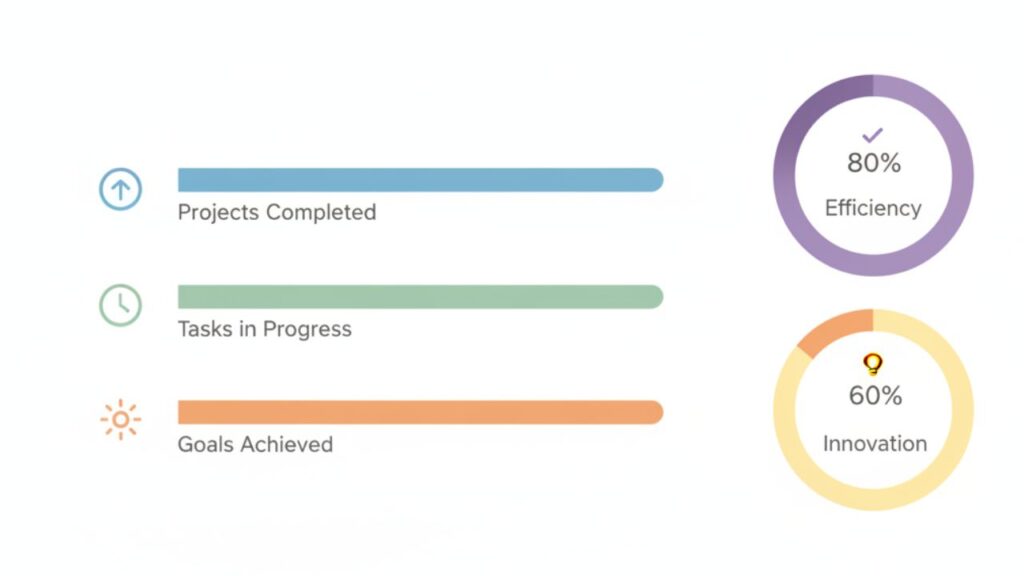
Basic Understanding of Claude Dashboard
Before moving to advanced optimization, beginners should first understand the core sections of the dashboard.
How to Use Claude Dashboard Effectively: From Basic to Pro Level
1. Chat Workspace
This is the main area where you communicate with Claude.
You can:
- Ask questions
- Upload files
- Generate content
- Create scripts
- Analyze PDFs
- Summarize documents
- Generate business ideas
Most beginners only use this section for simple prompts. Professionals use it as a workflow engine.
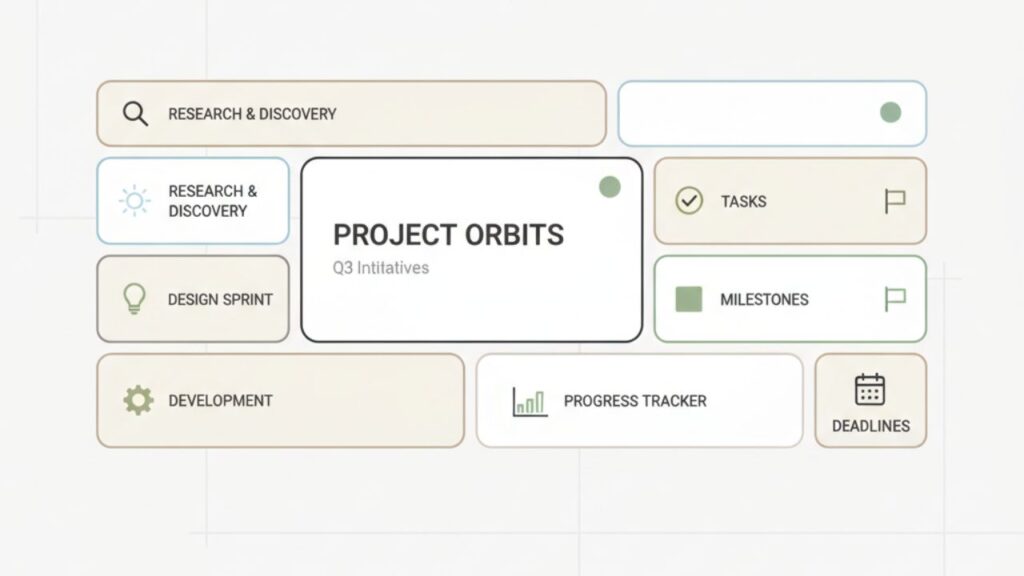
2. Project Organization
Claude allows better conversation management compared to many AI tools.
You should organize chats based on:
- Content creation
- SEO research
- Client work
- Course creation
- YouTube scripts
- Marketing campaigns
- Brand strategy
This improves productivity and saves time.
3. File Upload Feature
One of Claude’s strongest features is document understanding.
How to Use Claude Dashboard Effectively: From Basic to Pro Level
You can upload:
- PDFs
- Excel files
- Word documents
- Reports
- Research papers
- Marketing data
Claude can summarize, rewrite, analyze, and optimize the information professionally.
Best Claude Dashboard Settings for Beginners
Most users ignore settings and directly start chatting. That is a mistake.
Here are the best optimization practices.
Use Clear Instructions
Instead of writing:
“Write a blog.”
Use:
“Write a 1000-word SEO optimized blog for beginners in simple English with headings, keywords, CTA, and professional tone.”
The better the instruction, the better the result.
How to Use Claude Dashboard Effectively: From Basic to Pro Level
Create Reusable Prompt Templates
Professional users save time using reusable prompts.
Example:
Blog Prompt Template
- Target audience
- Word count
- SEO keyword
- Tone
- CTA
- Structure
- Writing style
This creates consistent quality.
Use Context-Based Conversations
Claude performs best when you continue conversations instead of starting new chats every time.
For example:
- First ask for topic ideas
- Then ask for outline
- Then request SEO keywords
- Then generate the full article
- Then optimize CTA
- Then create social media captions
This workflow produces much better outputs.
Best Claude Options from Basic to Pro Level
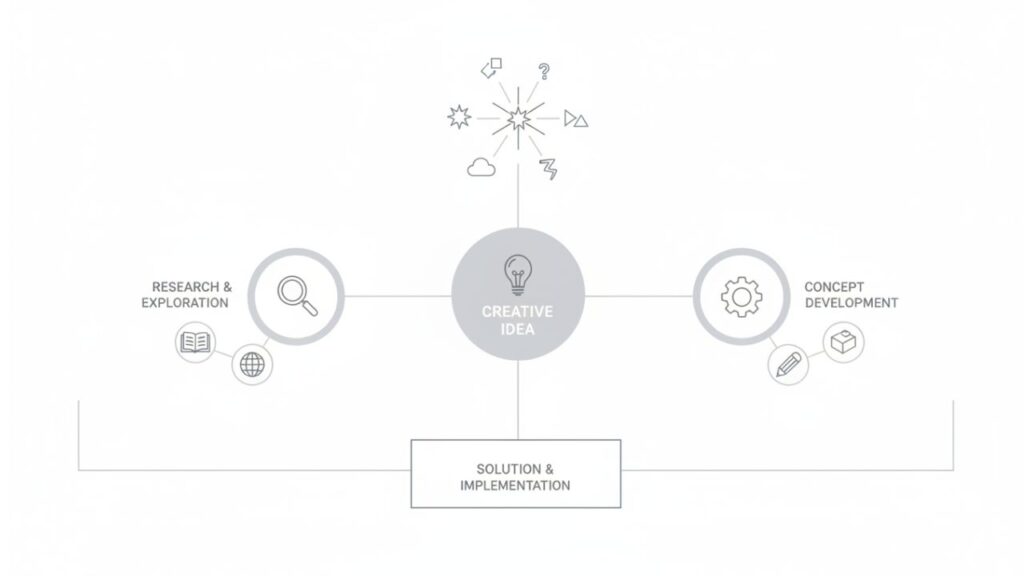
1. Content Writing
Claude is excellent for:
- SEO blogs
- YouTube scripts
- Instagram captions
- Email marketing
- Ad copy
- Landing pages
- Course content
Professional Tip:
Always provide:
- Target audience
- Tone
- Goal
- Desired outcome
- Word count
This increases output quality significantly.
2. Research and Summarization
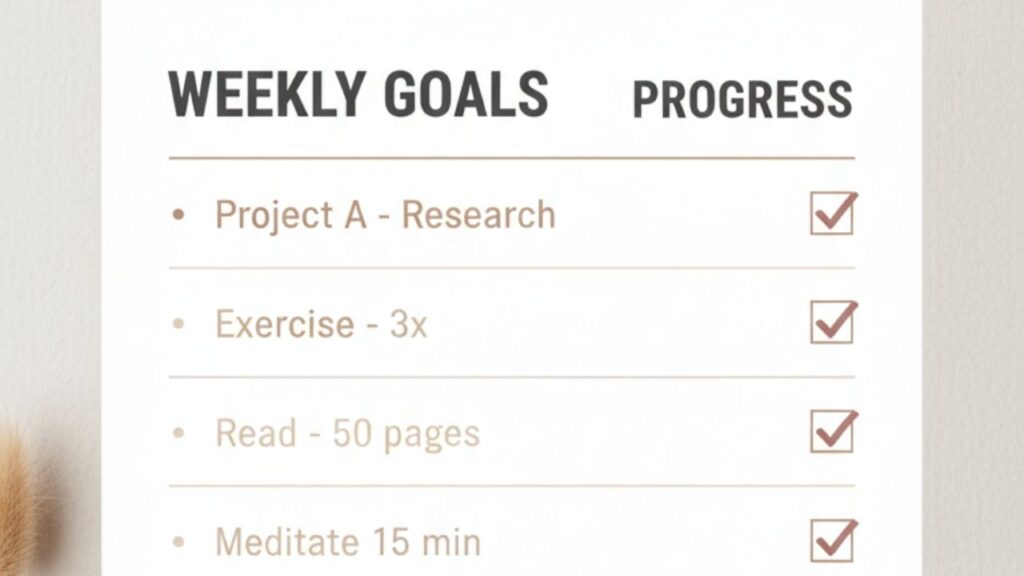
Claude handles long documents extremely well.
Professionals use it for:
- Competitor analysis
- Market research
- Product comparison
- Business reports
- Research summaries
Instead of reading hundreds of pages manually, Claude can summarize key insights within minutes.
3. AI Brainstorming
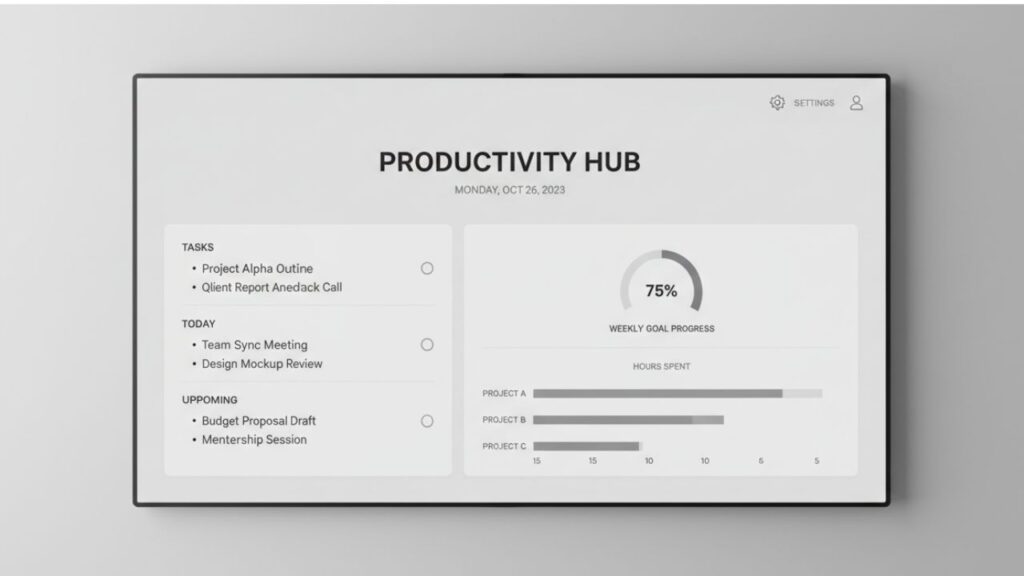
One underrated feature is idea generation.
How to Use Claude Dashboard Effectively: From Basic to Pro Level
You can use Claude for:
- Startup ideas
- Content pillars
- Reels hooks
- Webinar topics
- Course structure
- Lead magnet ideas
- Sales funnel planning
This makes Claude a strong business assistant.
4. Coding and Automation Support
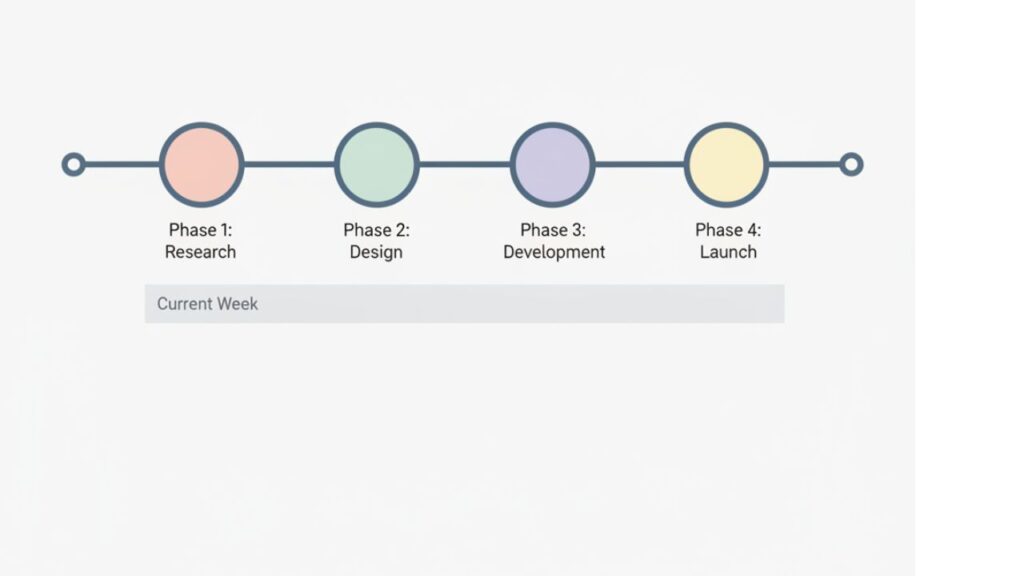
Even non-technical users can use Claude for:
How to Use Claude Dashboard Effectively: From Basic to Pro Level
- Website code
- HTML pages
- Automation workflows
- AI tools integration
- Spreadsheet formulas
- Basic app planning
Freelancers and agencies use Claude to speed up technical work.
Advanced Claude Dashboard Workflow for Professionals
Now let’s move from beginner level to professional usage.
Step 1: Build a Master Prompt
Professional users do not type random instructions repeatedly.
They create a detailed master prompt.
Example:
“You are a professional digital marketing strategist. Create SEO-focused content for beginners in India. Use simple language, conversion-focused writing, headings, CTA, and practical examples.”
This instantly improves consistency.
Step 2: Use Multi-Step Prompting
Instead of asking everything at once, divide tasks.
How to Use Claude Dashboard Effectively: From Basic to Pro Level
Example Workflow:
- Generate topic ideas
- Select target keyword
- Create outline
- Generate introduction
- Write main sections
- Add SEO optimization
- Add CTA
- Create meta description
- Create social media captions
This gives higher-quality results.
Step 3: Combine Claude with Other AI Tools
Professionals combine Claude with:
How to Use Claude Dashboard Effectively: From Basic to Pro Level
- Canva
- ChatGPT
- Notion
- Zapier
- Google Docs
- Midjourney
- CapCut
- WordPress
Example:
- Claude writes content
- Canva creates graphics
- CapCut edits videos
- WordPress publishes blogs
This creates a complete AI workflow.

Best Claude Use Cases for Different Users
For Students
Students can use Claude for:
- Notes summarization
- Assignment help
- Study plans
- Research assistance
- Presentation ideas
For Bloggers
Bloggers can use Claude for:
- SEO blogs
- Keyword clustering
- Content calendars
- Affiliate content
- Email newsletters
For Freelancers
Freelancers can use Claude for:
- Client proposals
- Marketing strategy
- Copywriting
- Automation workflows
- Productivity systems
For Small Business Owners
Business owners can use Claude for:
- Marketing campaigns
- Customer communication
- Sales copy
- Product descriptions
- Lead generation systems
Common Mistakes Beginners Make
Using Weak Prompts
Weak prompts produce weak results.
Always be specific.
Asking Too Many Things at Once
Break complex tasks into smaller prompts.
Claude performs better with structured workflows.
Ignoring Editing
AI-generated content should always be reviewed.
Add:
- Personal insights
- Brand tone
- Examples
- Human experience
This improves trust and originality.
Best Practices for Professional Claude Usage
Maintain Prompt Library
Save your best prompts.
Create categories like:
- Blog prompts
- YouTube prompts
- SEO prompts
- Ad copy prompts
- Email prompts
This saves hours every week.
Focus on Context
Claude works best with detailed context.
How to Use Claude Dashboard Effectively: From Basic to Pro Level
The more background information you provide, the better the output quality.
Use AI for Speed, Not Laziness
Professional creators use AI to improve productivity, not to spam low-quality content.
Focus on:
- Quality
- Clarity
- Value
- Trust
- Originality
This builds long-term brand authority.
Final Thoughts
How to Use Claude Dashboard Effectively: From Basic to Pro Level
Claude Dashboard is much more than a basic chatbot. When used properly, it becomes a powerful productivity and business system.
Beginners usually use Claude only for simple writing tasks, but professionals use it for:
- Research
- Automation
- Content systems
- SEO workflows
- Business planning
- Lead generation
- Brand growth
The key difference is workflow optimization.
If you want professional-level results:
- Use detailed prompts
- Organize conversations
- Build reusable systems
- Combine Claude with other tools
- Focus on structured workflows
AI tools are becoming essential in modern business and digital marketing. Learning how to use Claude Dashboard effectively can save time, improve productivity, and help you scale your online work faster.
Professional Featured Image Suggestion
Create a professional blog banner with:
How to Use Claude Dashboard Effectively: From Basic to Pro Level
- A modern AI dashboard interface
- Claude AI workspace on screen
- Digital marketing analytics
- Professional workspace setup
- Blue and white premium color palette
- Clean business aesthetic
- Text overlay: “Claude Dashboard Guide: From Beginner to Pro”
Recommended For M.D.U :
Start your journey – Ai powered by digital marketing by mathuradigitaludaan.com